Split PDF

Extract specific pages from your PDF file.

Click to upload PDF

Split PDF Online – Separate PDF Pages Easily

Sometimes you only need a few pages from a large PDF. Maybe you want to share one section of a report, extract specific assignment pages, or remove unnecessary pages from a scanned document. Instead of sending the entire file, you can extract just the pages you need and create a new, smaller PDF
Box PDF offers a free Split PDF tool that lets you separate PDF pages by selecting a page range. There is no software to install and no sign-up required β€” everything happens right in your browser. Whether you are a student pulling out assignment pages, an office worker extracting parts of a report, or someone who just wants to keep relevant pages, this tool makes the process simple and quick.
Learn more about the PDF format on Adobe’s PDF page. Wikipedia’s PDF page also works.
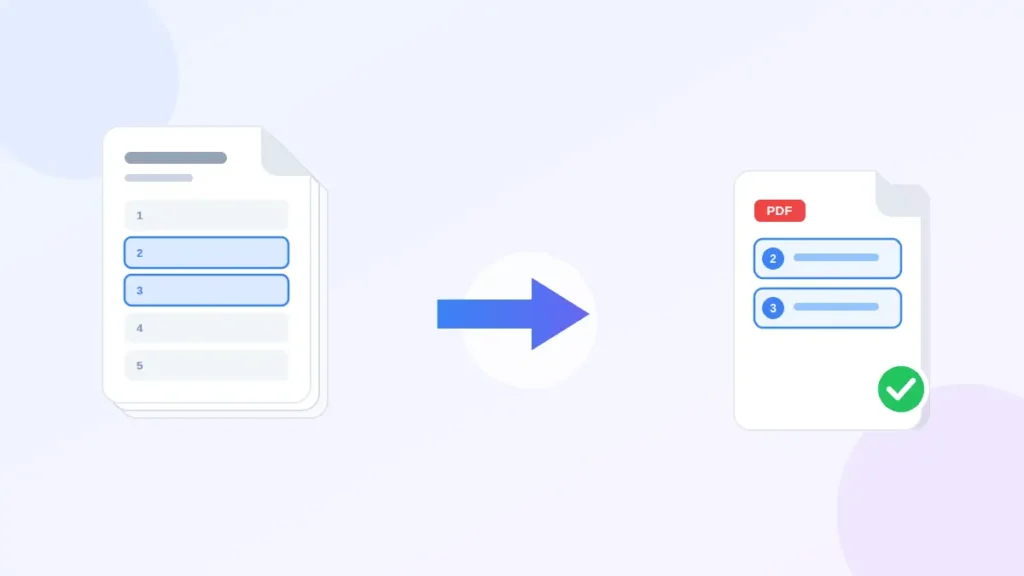
Splitting a PDF by extracting selected pages into a new document

How to Split a PDF Online

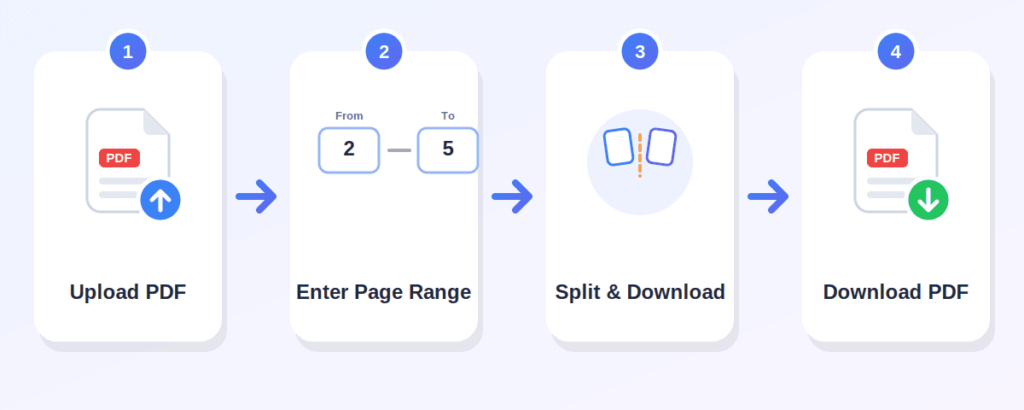
Splitting a PDF with Box PDF takes just a few easy steps:
Four-step guide showing how to split PDF pages online: upload, select range, split, and download

Step 1: Upload your PDF file.

Click the "Click to upload PDF" area and select the PDF document you want to split. Only PDF files are supported.

Step 2: Enter the page range.

After uploading, two fields appear β€” a "from" page and a "to" page. Enter the starting and ending page numbers for the section you want to extract. The tool automatically detects the total number of pages in your PDF and fills in the last page for you.

Step 3: Click "Split & Download."

Once you have set the page range, press the "Split & Download" button to create a new PDF with your selected pages.

Step 4: Download your new PDF.

The tool generates a new PDF containing only the pages you chose, ready to save to your device.
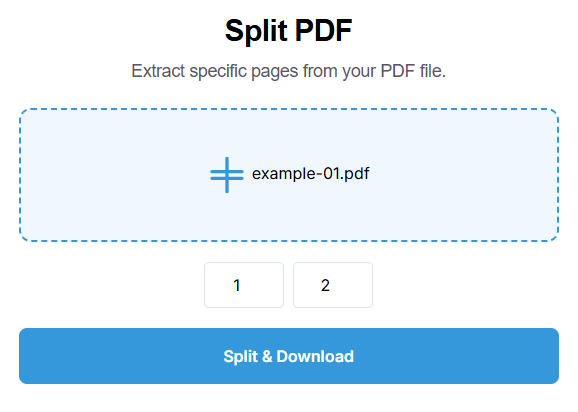
To extract a single page, simply set both the "from" and "to" fields to the same page number.

Box PDF Split PDF tool interface showing the upload area, page range fields, and split button

Why Use Box PDF Split PDF Tool?

Free to use

split PDF pages online without any cost

No software installation

everything runs in your browser, so there is nothing to download or install

Simple and beginner-friendly

just upload, enter a page range, and download

Extract selected pages

pull out the pages you need and leave the rest behind

Useful for large PDF documents

work with long PDFs without scrolling through pages you do not need

Works across common devices

use it on a phone, tablet, or desktop computer

Browser-based processing

Box PDF describes its tools as browser-based and says files are not stored

Who Can Use This Tool?

The Split PDF tool is built for a wide range of users:
01

Students

Can separate specific assignment pages or study materials from a larger PDF

02

Office workers

Can extract selected pages from reports, contracts, or meeting documents

03

Teachers

Can pull out individual worksheets or specific pages from course materials

04

Job seekers

Can extract relevant pages from a larger document when needed for applications

05

Freelancers

Can separate project-related pages from a comprehensive document

06

Small business owners

Can extract specific pages from reports or business records

07

General users

Can keep only the pages they need instead of sharing an entire PDF

Split PDF Online: Common Uses

Here are some of the most common situations where splitting a PDF comes in handy:

Frequently Asked Questions

How do I split a PDF online?

Upload your PDF using the "Click to upload PDF" area, enter the page range you want to extract, then click "Split & Download." Your new PDF will be ready to save.

Can I split a PDF by page range?

Yes. The tool uses a "from" and "to" page range. Enter the starting and ending page numbers to extract that section of the PDF.

Is the Split PDF tool free?

Yes, the tool is free to use with no hidden costs.

Do I need to install software to split a PDF?

No. The entire splitting process happens online, directly in your browser β€” no installation needed.

Can I use the Split PDF tool on my phone?

Yes, the tool works on mobile phones, tablets, and desktop computers alike.

Can I extract a single page from a PDF?

Yes. To extract one page, set both the "from" and "to" fields to the same page number.

Can I split a large PDF document?

Yes, you can split large PDF documents by selecting the page range you need. The tool processes the file in your browser

Does splitting a PDF change the original file?

Splitting creates a new PDF with your selected pages, so your original PDF file is not edited.