
Box PDF offers a free PDF watermark tool that lets you place text watermarks on documents. Adjust the font size, color, opacity, and rotation. No software installation is required.

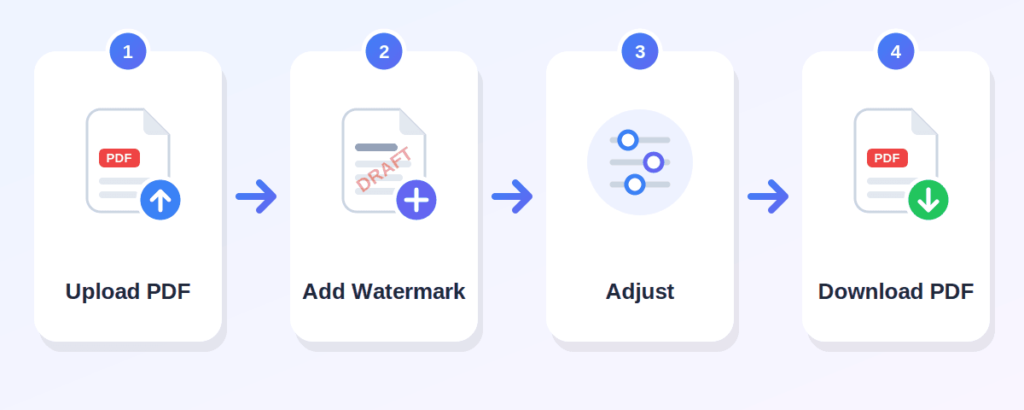
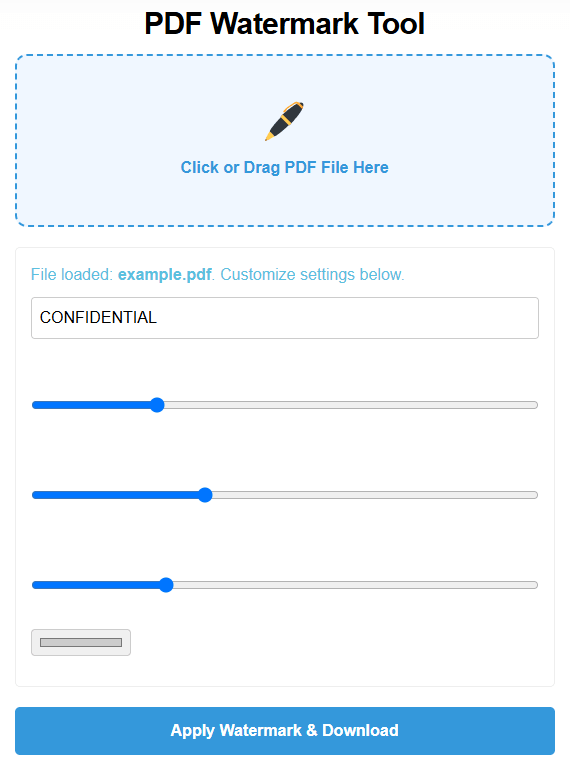
Click the "Click or Drag PDF File Here" area and choose the PDF document you want to watermark. Only PDF files are supported.
Type the text you want to use as your watermark in the text field. The default text is "CONFIDENTIAL," but you can change it to anything — your name, company name, "DRAFT," or any other identifying text.
Use the sliders to customize your watermark:
Font size — control how large the text appears (range: 20 to 150)
Opacity — set how transparent the watermark is (range: 0.05 to 0.5)
Rotation — angle the text (range: -90 to 90 degrees, default -45)
Color — pick a color using the color picker (default: light gray)
Once your text and settings are ready, press the "Apply Watermark & Download" button. The watermark is applied to all pages and the file is saved to your device.
add watermark to PDF online without any cost
everything runs in your browser
type any text you need
adjust the watermark size with a slider
make the watermark as subtle or visible as you want
angle the watermark to your preference
choose any color for your watermark text
the watermark is added to every page in the document
use it on a phone, tablet, or desktop computer
Box PDF describes its tools as browser-based and says files are not stored
Can label assignments or thesis drafts with their name or "DRAFT"
Can mark documents or reports as "CONFIDENTIAL"
Can watermark course materials or exam papers with their name
Can mark resumes or portfolio documents
Can add their name or brand to project deliverables
Can add a company name or copyright notice to documents
Can label personal documents for identification
uses written text — such as a name, brand, "CONFIDENTIAL," or "DRAFT." It is quick to create and works well for labeling.
uses a logo or picture placed over the document. It is commonly used for branding.
Upload your PDF, enter your watermark text, adjust the font size, opacity, rotation, and color, then click "Apply Watermark & Download."
Yes, the tool is free to use.
Yes. You can type any text — your name, company name, "DRAFT," "CONFIDENTIAL," or any label.
The tool supports text watermarks. Image or logo watermarking is not available.
No. The process happens online, directly in your browser
Yes, the tool works in a browser on phones, tablets, and desktops.
You can adjust font size, opacity, rotation, and color. The watermark is placed near the center of each page automatically.
Yes. The watermark is applied to all pages in your PDF automatically
No. A watermark is a visual label for identification. It does not prevent copying, editing, or removing content.
You can add labels like "CONFIDENTIAL" to visually mark documents. However, a watermark is not a security measure and does not guarantee protection.