
The Box PDF Protect PDF tool handles this in your browser. You choose the file, set a password, and download a protected copy. There is nothing to install and no account to create.
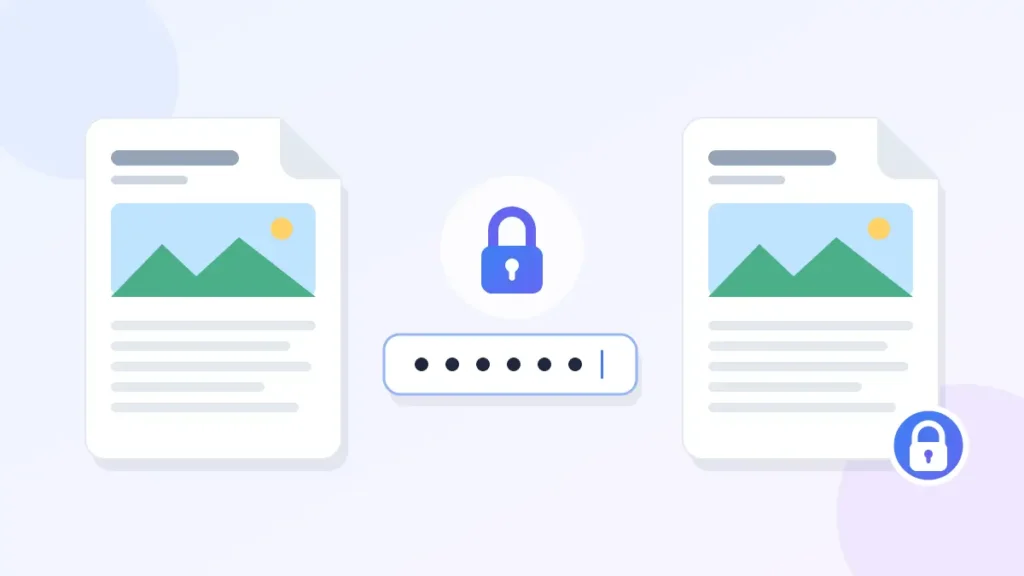
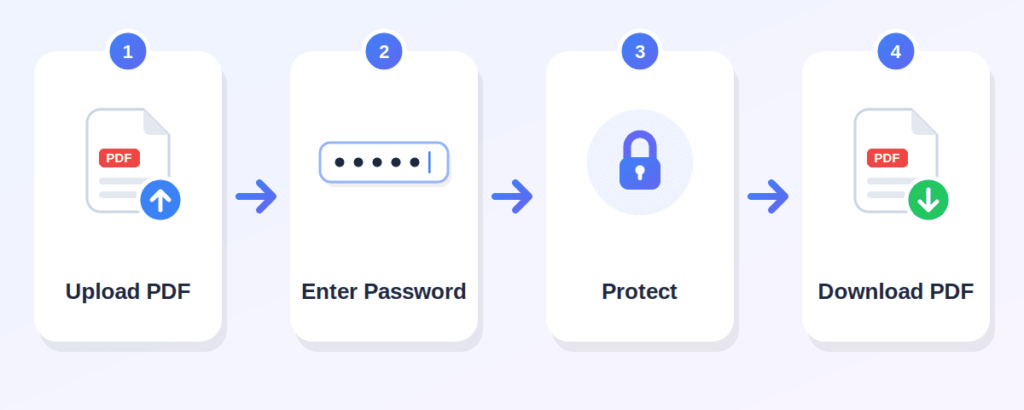
Choose the document you want to protect from your device.
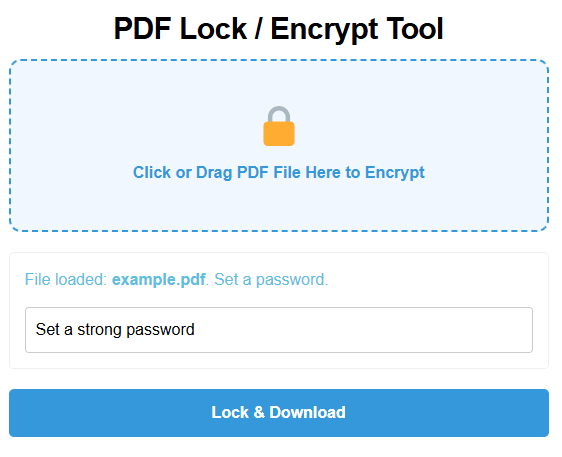
Type the password into the password field. Pick something long enough to be difficult to guess — there are tips further down this page.
If a confirmation field is shown, enter the same password again. This catches typing mistakes, which matters because a wrong password means a file you cannot open.
Click the Protect PDF / Protect & Download button.
Save the protected PDF to your device. Open it once to confirm the password prompt appears and that your password works before you delete the original or send the file on.
no cost to add a password to your document.
it works in your browser, so there is nothing to download.
a file, a password, and a download.
desktop, laptop, tablet, or phone with a modern browser.
no complicated settings to work through.
records, reports, and paperwork alike.
a straightforward step when a document leaves your device.
no technical background needed.
Box PDF is built around browser-based processing, so your document stays under your control instead of being passed around unnecessarily.
Protecting a research draft or a scanned ID copy before uploading it somewhere.
Adding a password to an internal report before emailing it to a colleague.
Protecting exam papers, marks sheets, or student records.
Protecting a document pack that contains personal details.
Sending contracts, invoices, or client deliverables with a password.
Keeping financial statements and supplier agreements behind a password.
Protecting client files and confidential paperwork they need to share.
Protecting personal documents stored on a shared computer.
Length helps more than complicated symbols. A short phrase you can remember usually beats a scrambled seven-character password.
Names, birthdays, phone numbers, and company names are easy for others to guess.
Anything like "123456", "password", or a simple keyboard pattern offers very little.
Never use your email or banking password for a document.
A password manager or a secure note works well. If you lose the password, you generally lose access to the file, so keep a copy of the original document somewhere safe.
When you send a protected file to someone, send the password through a different channel — not in the same email as the attachment.
Select your PDF, enter a password, confirm it if asked, click the protect button, and download the protected file.
Yes. The Protect PDF tool is free to use.
Upload the file, type your chosen password into the password field, and apply the protection. The downloaded copy will ask for that password when opened.
Yes. It works in mobile browsers, so you do not need a computer.
No. Everything happens in your web browser.
No. A password reduces the risk of unwanted access, but no protection method is absolute. Do not treat it as a guarantee, and be careful about who you share the password with.
Length, and no personal or reused information. A longer phrase that is not tied to your name, birthday, or another account works best.
You will generally not be able to open that file, so store the password somewhere safe and keep the unprotected original in a secure place.
That depends on the tools available on Box PDF. Check the tool list for an unlock or removepassword option. In any case, keep a copy of your original file — that is the simplest way to get back to an unprotected version.