
Box PDF offers a free PDF page rotator that lets you fix page orientation in your browser. Rotate all pages at once or choose specific pages. Pick a rotation angle, enter which pages to rotate,
and download the corrected file.

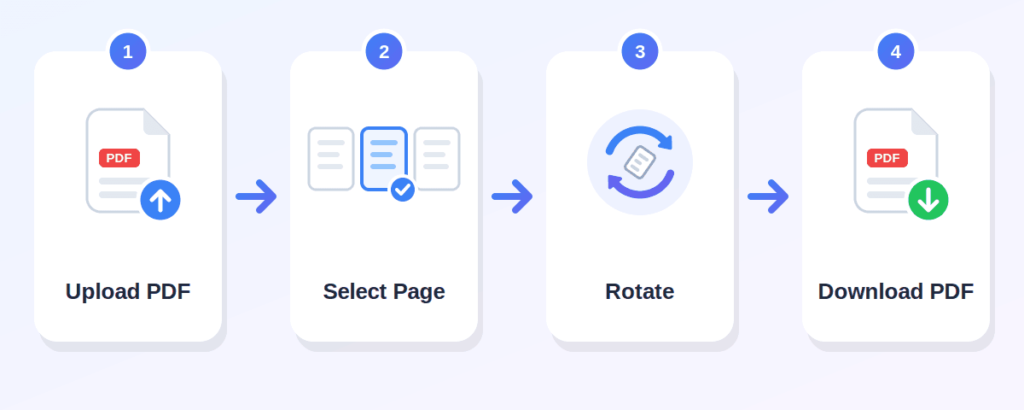
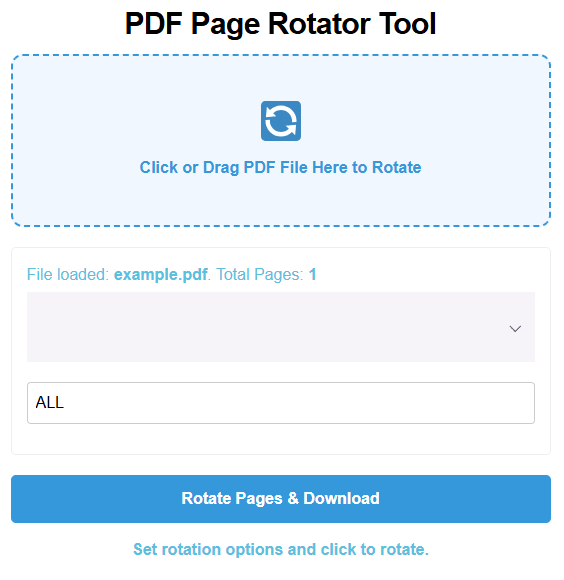
Click the "Click or Drag PDF File Here to Rotate" area and choose the PDF file you want to rotate. Only PDF files are supported. The tool will check the page count automatically
Use the dropdown to select 90, 180, or 270 degrees. A 90-degree turn rotates the page a quarter turn clockwise. A 180-degree turn flips it upside down. A 270- degree turn rotates it three quarters clockwise.
Enter page numbers in the page range field. Type "ALL" to rotate every page, or enter specific pages like "1, 3, 5" or a range like "2-4." The default is "ALL."
Once you have set the angle and pages, press the "Rotate Pages & Download" button. Your rotated PDF will be saved to your device.
rotate PDF online without any cost
everything runs in your browser
rotate 90, 180, or 270 degrees
select which pages to rotate using page numbers or ranges
use "ALL" to rotate the entire document in one step
the tool shows total pages after upload
use it on a phone, tablet, or desktop computer
Box PDF describes its tools as browser-based and says files are not stored
Can fix sideways scanned assignments before submitting
Can correct scanned documents or reports
Can rotate upside-down worksheets or exam papers
Can correct rotated pages in resumes or portfolios
Can fix page orientation in project files before sharing
Can fix scanned invoices that came in sideways
Can rotate any PDF page in the wrong orientation
If only a single page is sideways, enter that page number (for example, "3"). Only that page will be rotated.
Enter pages separated by commas (like "1, 3, 5") or as a range (like "2-6"). All listed pages will be rotated by the same angle.
Type "ALL" to rotate every page at once. This is the default.
rotates the page a quarter turn clockwise. Useful when a page is turned sideways.
flips the page upside down. This fixes pages that appear upside down after scanning.
rotates three quarters clockwise, the same as rotating 90 degrees counterclockwise. Use this when a sideways page needs to turn the other way.
Upload your PDF, choose a rotation angle, enter which pages to rotate (or type "ALL"), then click "Rotate Pages & Download."
Yes, the tool is free to use.
No. The process happens online, directly in your browser.
Yes, the tool works in a browser on phones, tablets, and desktops.
Yes. Enter the page number in the page range field to rotate only that page.
Yes. Enter page numbers separated by commas (like "1, 3, 5") or as a range (like "2-6").
Yes. The tool offers 90, 180, and 270 degree options.
Yes. Select 180 degrees and enter the page number to fix an upside-down page.
Yes, as long as the file is a valid, unlocked PDF.
No. The tool creates a new rotated copy. Your original file stays unchanged.